Difference between revisions of "Android EN"
From CMU ITSC Network
Thomhathai (talk | contribs) |
|||
| (One intermediate revision by the same user not shown) | |||
| Line 6: | Line 6: | ||
* If you see both network names, your device supports the '''5GHz''' frequency band. It is recommended to connect to '''@JumboPlus5GHz'''. <br/><br/>[[File:android_jumbo1.png|556x556px|link=]] <br/><br/> | * If you see both network names, your device supports the '''5GHz''' frequency band. It is recommended to connect to '''@JumboPlus5GHz'''. <br/><br/>[[File:android_jumbo1.png|556x556px|link=]] <br/><br/> | ||
2. Enter your '''CMU Account''' in the '''Identity''' and '''Password''' fields | 2. Enter your '''CMU Account''' in the '''Identity''' and '''Password''' fields | ||
| − | * Students → | + | * Students → Firstname_Surname@cmu.ac.th |
| − | * Staff → | + | * Students with ID 69 onwards → StudentID@cmu.ac.th |
| + | * Staff → Firstname.Surname@cmu.ac.th <br/><br/> | ||
[[File:android_jumbo2.png|556x556px|link=]] <br/><br/> | [[File:android_jumbo2.png|556x556px|link=]] <br/><br/> | ||
3. Tap on '''CA certificate''', then select '''Use system certificates'''. In the '''Domain''' field, enter: '''jumbo.cmu.ac.th''' | 3. Tap on '''CA certificate''', then select '''Use system certificates'''. In the '''Domain''' field, enter: '''jumbo.cmu.ac.th''' | ||
Latest revision as of 08:58, 7 July 2026
Connecting to @JumboPlus5GHz on Android
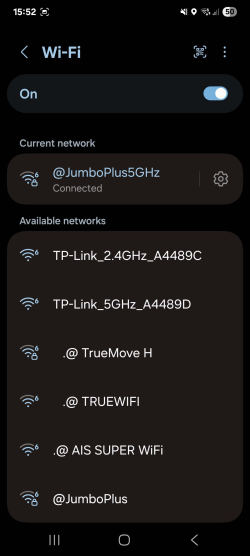
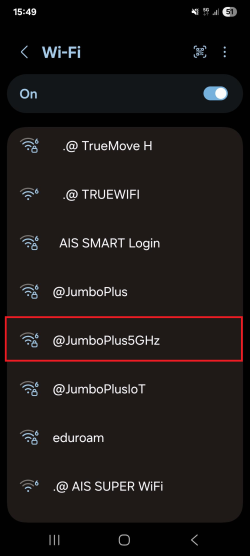
1. Go to Settings >> Wi-Fi >> Turn on Wi-Fi, then select @JumboPlus5GHz.
- If you only see @JumboPlus, it means your device supports only the 2.4GHz frequency band.
- If you see both network names, your device supports the 5GHz frequency band. It is recommended to connect to @JumboPlus5GHz.
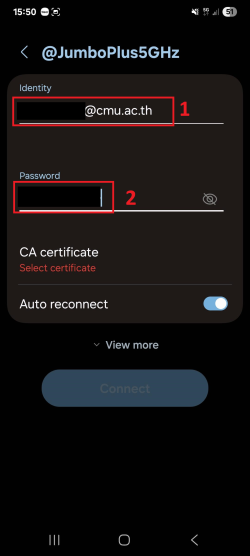
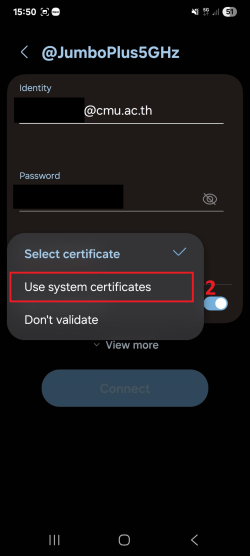
2. Enter your CMU Account in the Identity and Password fields
- Students → Firstname_Surname@cmu.ac.th
- Students with ID 69 onwards → StudentID@cmu.ac.th
- Staff → Firstname.Surname@cmu.ac.th
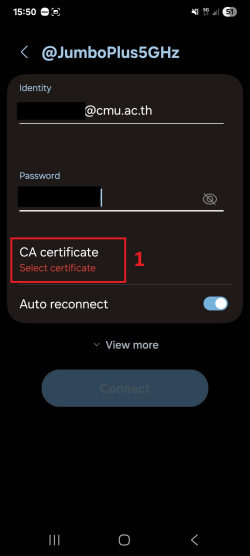
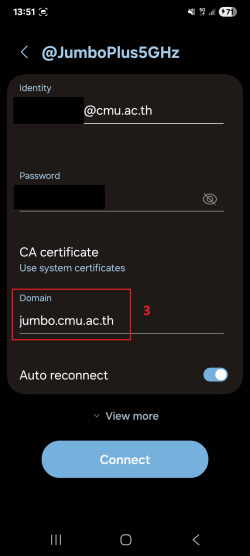
3. Tap on CA certificate, then select Use system certificates. In the Domain field, enter: jumbo.cmu.ac.th
If your device does not have the option to "Use system certificates", select Do not validate, unspecified, or none instead.
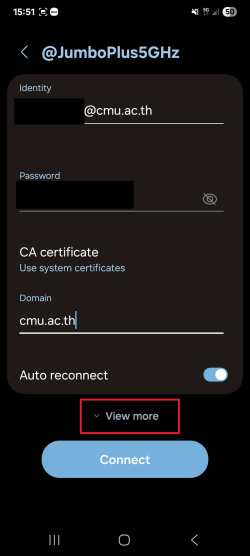
4. Tap View more (or Advanced settings).
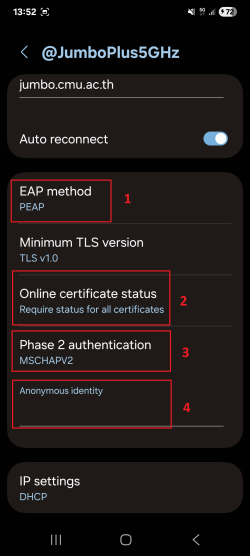
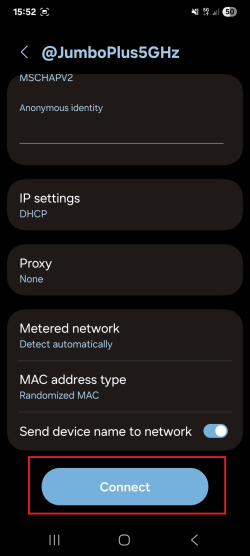
5. Make sure the following settings are correct:
- EAP method: PEAP
- Online certificate status: Require status for all certificates
- Phase 2 authentication: MSCHAPV2
- Anonymous identity: Leave this field blank. (If it auto-fills, delete the content.)
6. Scroll down and tap Connect.
7. Once connected to @JumboPlus5GHz, your device will remember the network and automatically connect when in range.