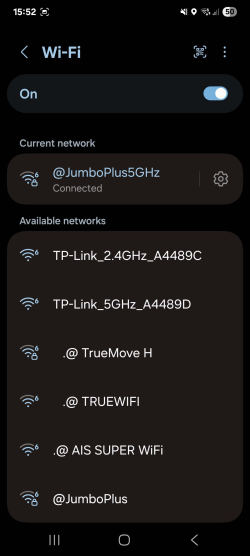
Jumbo Android Guest EN
From CMU ITSC Network
Connecting to @JumboPlus5GHz on Android
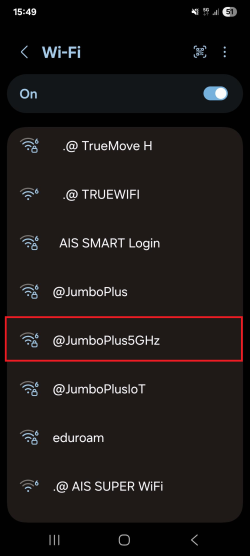
1. Go to Settings >> Wi-Fi >> Turn on Wi-Fi, then select @JumboPlus5GHz.
- If you only see @JumboPlus, it means your device supports only the 2.4GHz frequency band.
- If you see both network names, your device supports the 5GHz frequency band. It is recommended to connect to @JumboPlus5GHz.
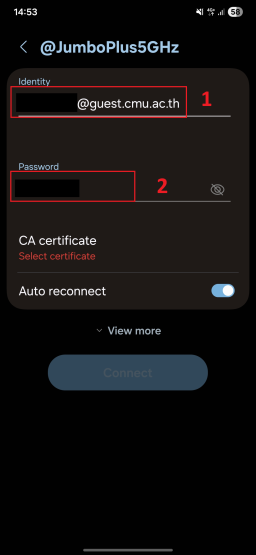
2. Enter your CMU Account in the Identity and Password fields
- Guest → Username: Number@guest.cmu.ac.th
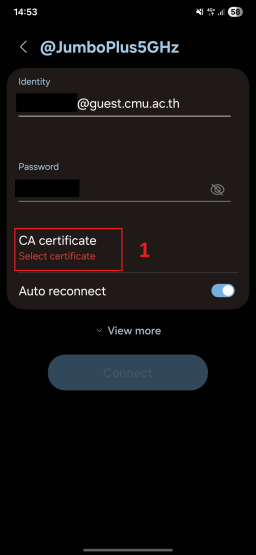
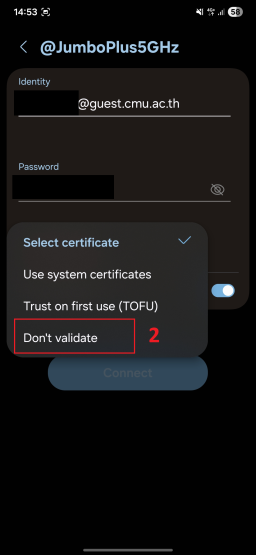
3. Tap on CA certificate, then select Do not validate, unspecified, or none.
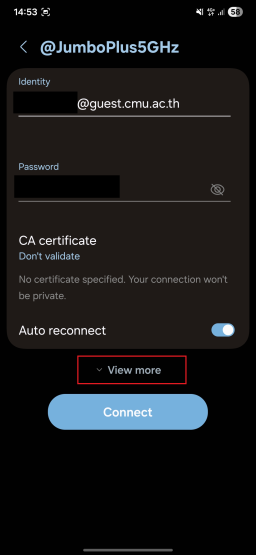
4. Tap View more (or Advanced settings).
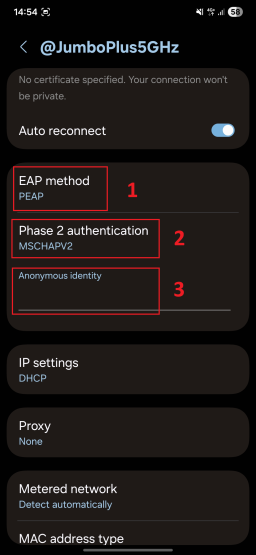
5. Make sure the following settings are correct:
- EAP method: PEAP
- Phase 2 authentication: MSCHAPV2
- Anonymous identity: Leave this field blank. (If it auto-fills, delete the content.)
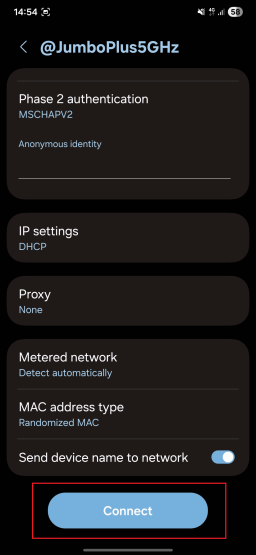
6. Scroll down and tap Connect.
7. Once connected to @JumboPlus5GHz, your device will remember the network and automatically connect when in range.