CMU Login English
From CMU ITSC Network
CMU Internet Login – English Guide
Who can use CMU Login
1. CMU staff who access the internet via LAN cable.
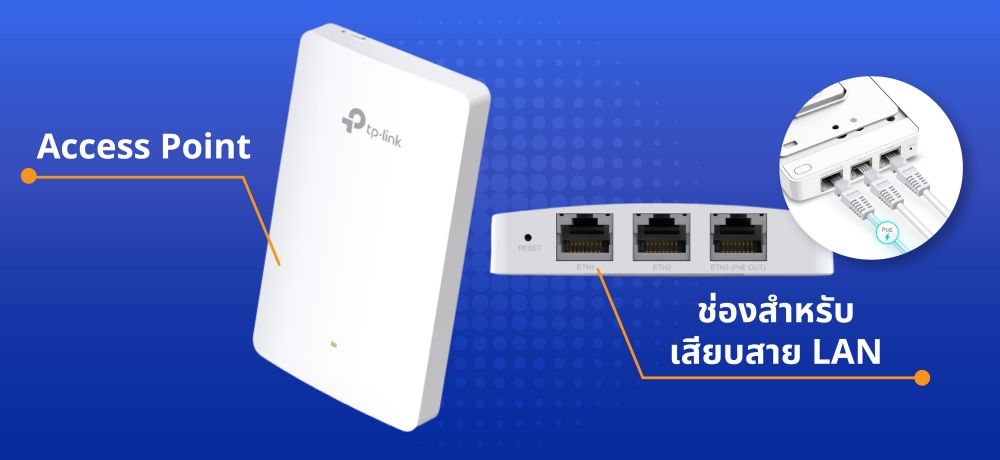
2. Students living in dormitories managed by the CMU Student Dormitory Office where a Wi‑Fi access point is installed in the room.
Students in the dormitories can choose to connect to the internet via LAN cable for better performance and stability.
You can log in using one of these methods:
* Connect via GlobalProtect application (recommended).
* Connect via the CMU Login client application.
* Connect via a web browser.
Connect via GlobalProtect application (Recommended)
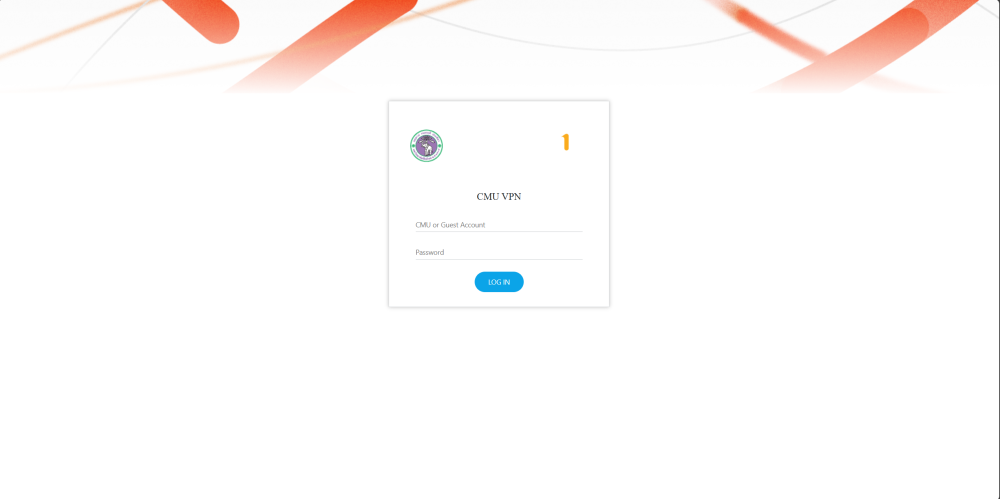
- After plugging the LAN cable into your computer, open a web browser (e.g. Microsoft Edge / Google Chrome), type https://login-gateway.cmu.ac.th in the address bar, then press Enter and log in with your CMU Account.
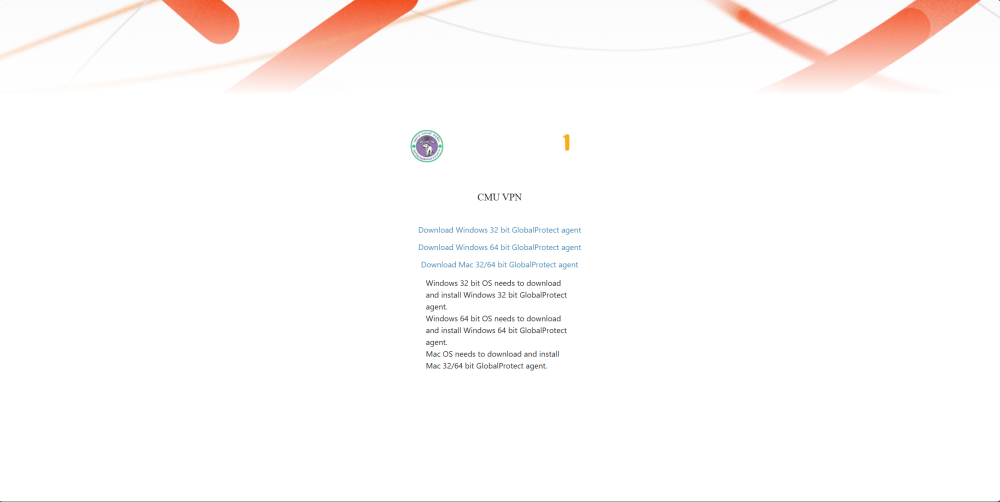
- Download the GlobalProtect installer that matches your PC’s system type and install the program. For detailed installation instructions, see GlobalProtect VPN (Recommend).
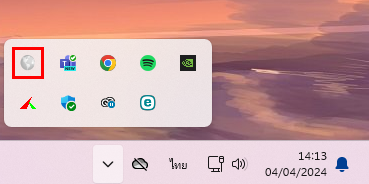
- Click the system tray and select the GlobalProtect icon.
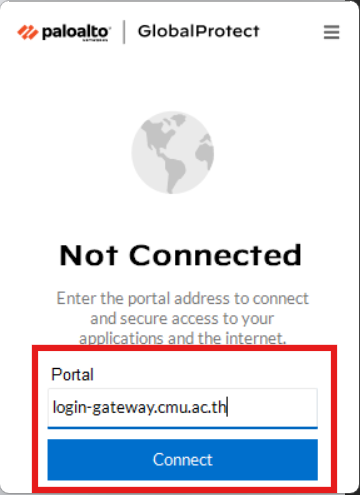
- The “Welcome!” window will appear. Click Get Started, type login-gateway.cmu.ac.th, then click Connect.
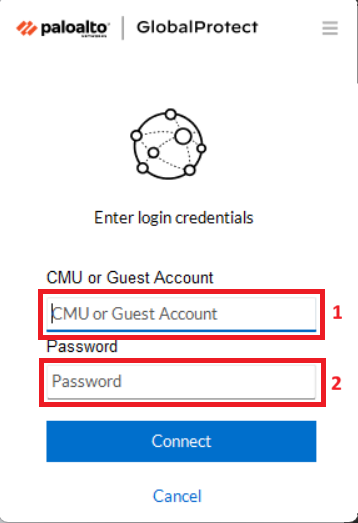
- Log in using your CMU Account.
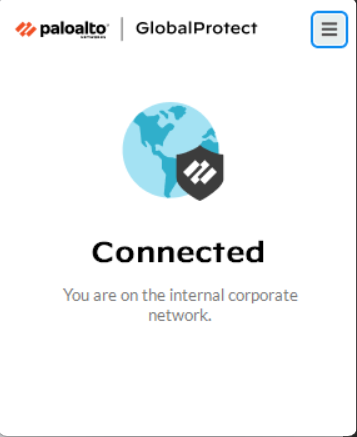
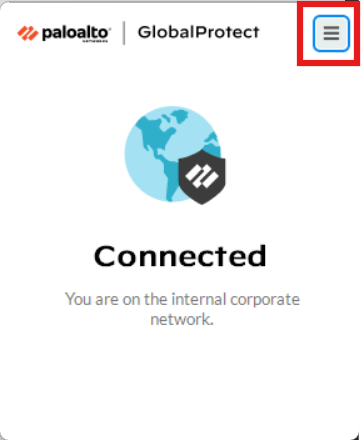
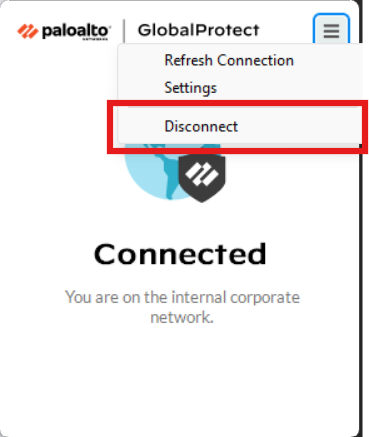
- When you want to disconnect from the internet, click the GlobalProtect icon on the menu bar, click the hamburger menu in the upper‑right corner, then select Disconnect.
Connect via Client Application
For Windows operating system
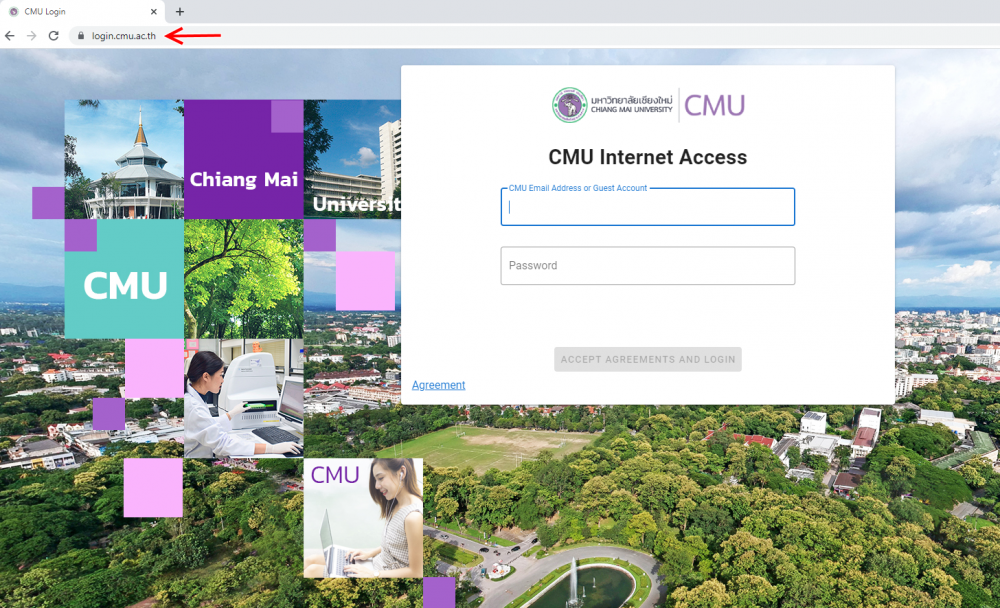
- Open a Web Browser (eg. Microsoft Edge / Google Chrome) and type login.cmu.ac.th the address bar, then press Enter.
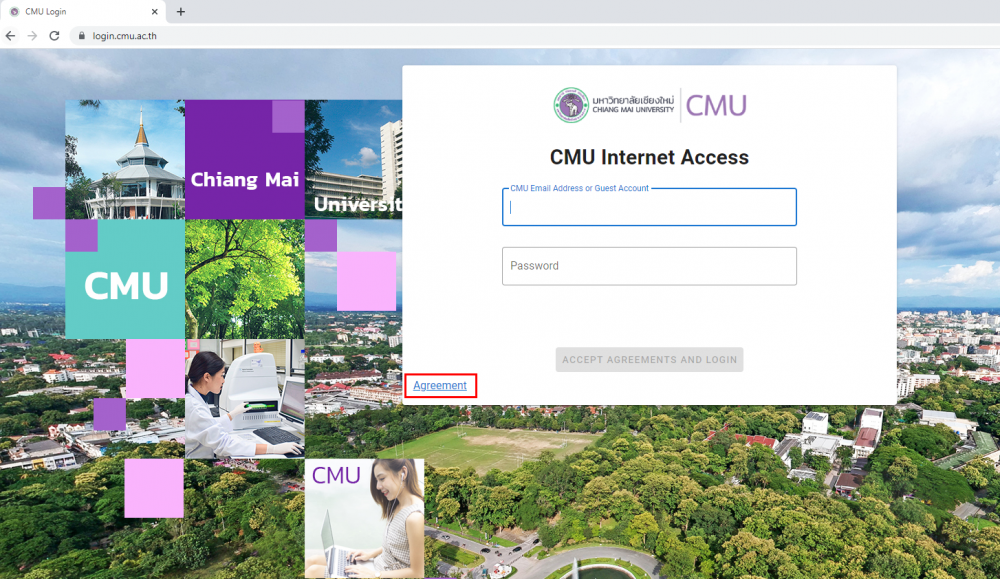
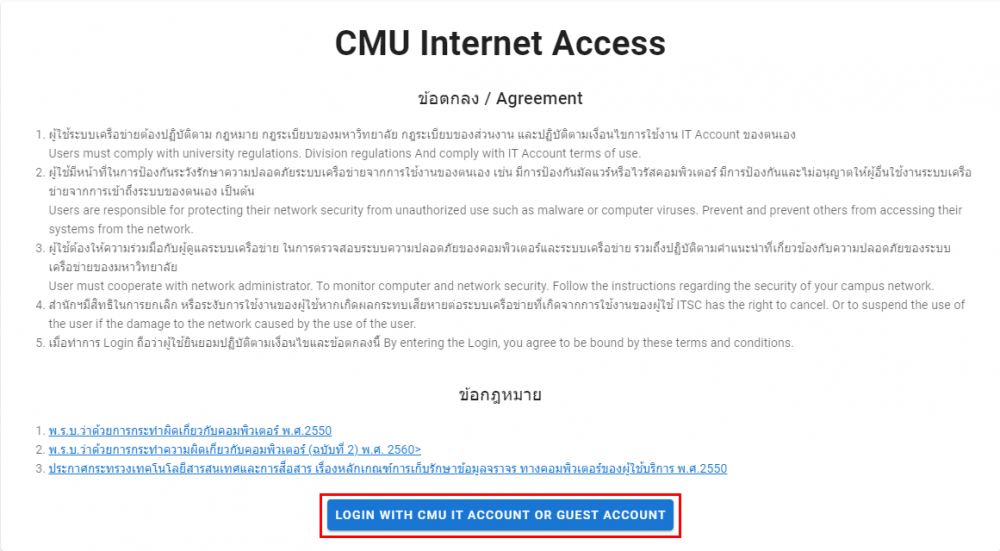
- For the first time you log in, it is recommended to read the Agreement
- After you fully understand the Agreement, click the button LOGIN WITH CMU ACCOUNT OR GUEST ACCOUNT.
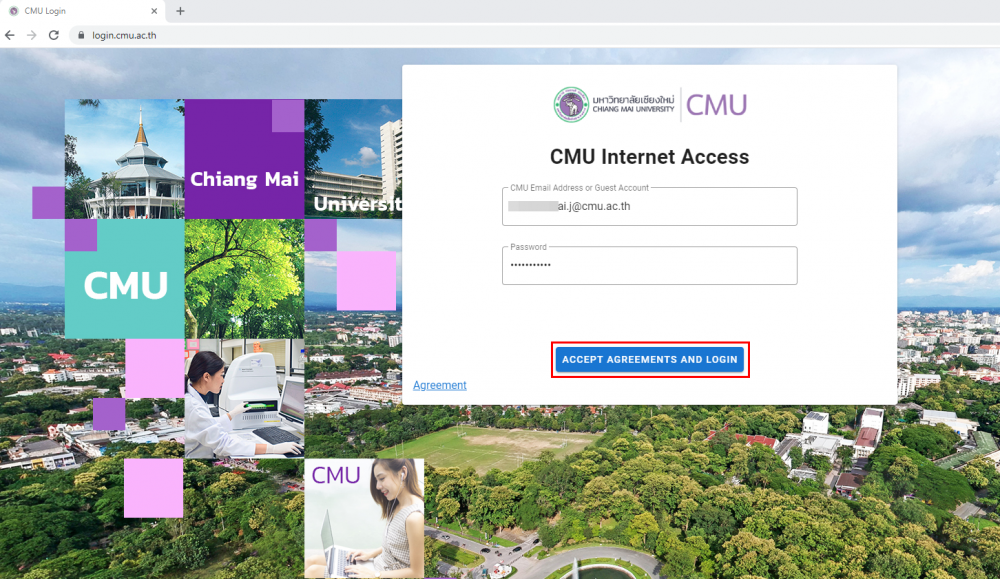
- Enter your CMU Account (both username and password), then click ACCEPT AGREEMENT AND LOGIN.
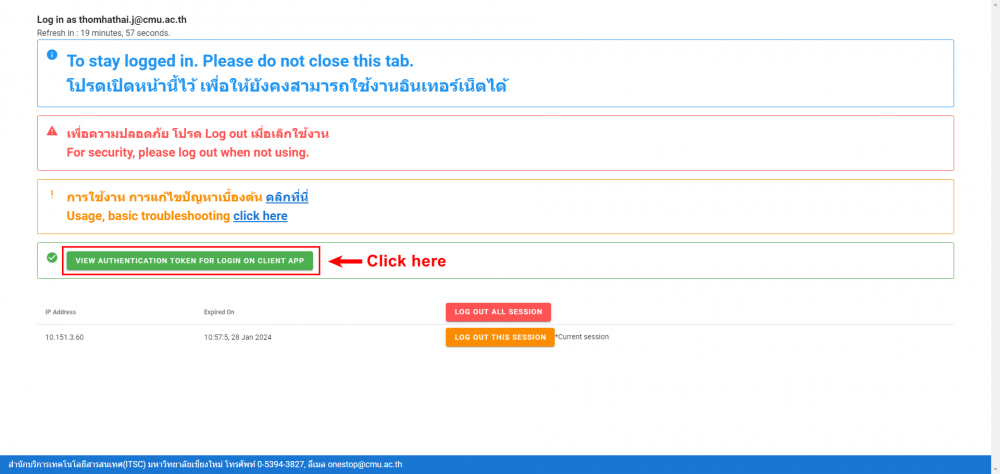
- Click the green button View Authentication Token for Login on Client App.
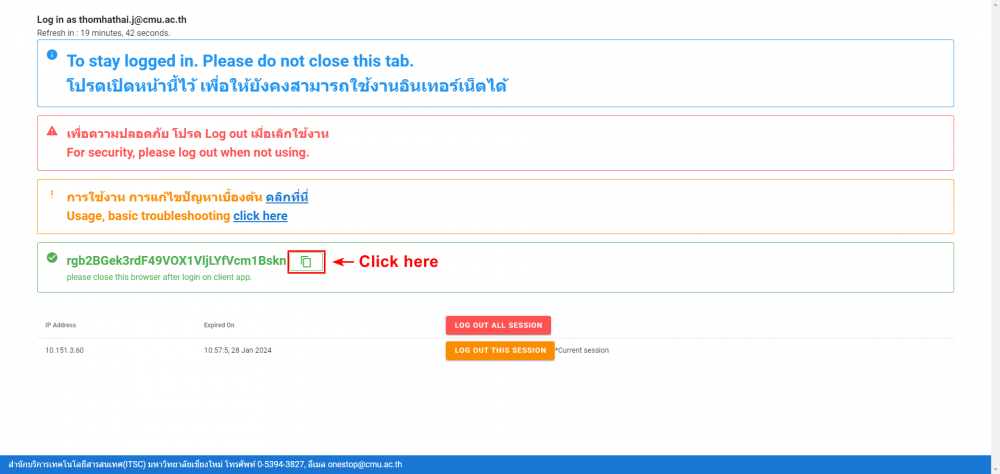
- A Token code will be shown. Click Copy to copy it (keep this web page open for now).
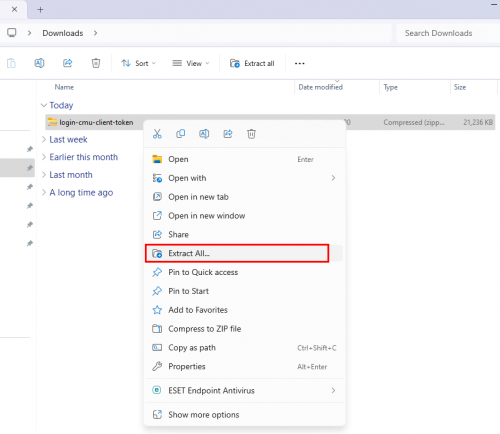
- Download the program from this link >>> CMULogin <<< then right‑click the file, select Extract All and click Extract.

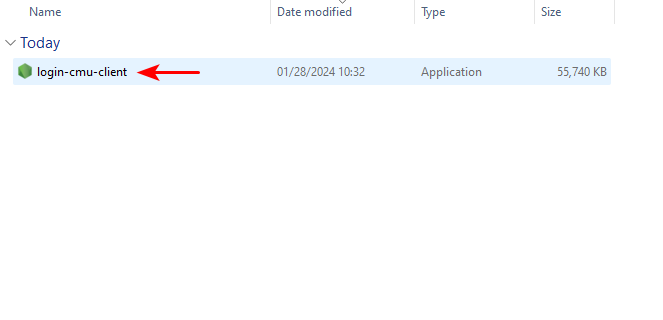
- Open the folder login-cmu-client and double‑click the file login-cmu-client.
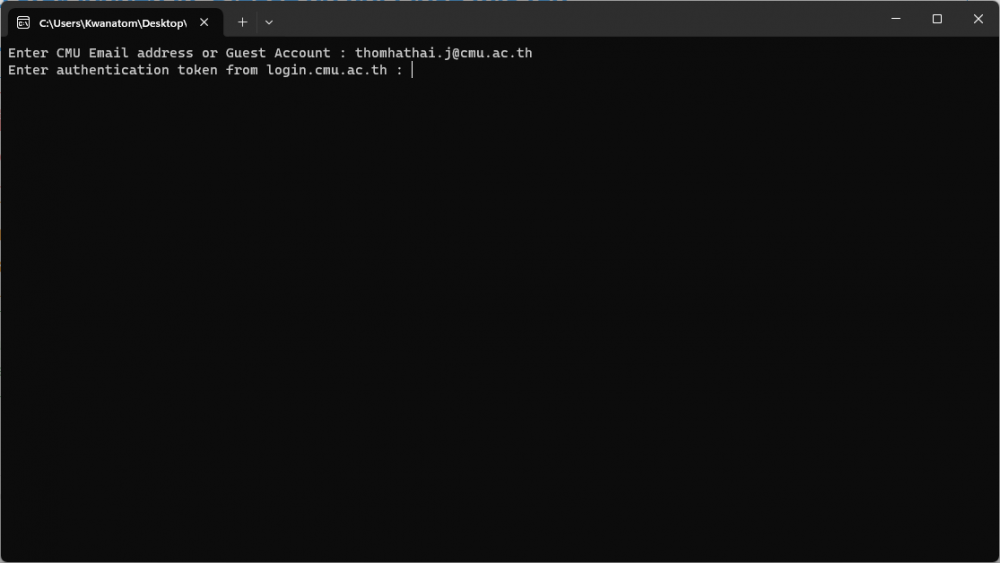
- In the application window, type your CMU Account Username and press Enter, then place the cursor at the end of the second line and press Ctrl+V to paste the Token copied from login.cmu.ac.th , then press Enter again.
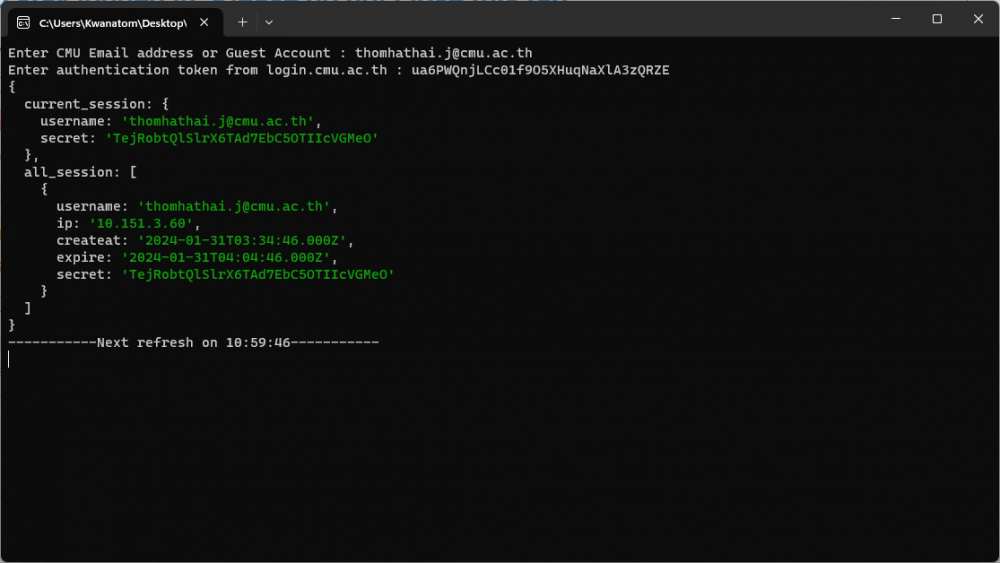
- Keep this application window open during use (you can minimize it). After that, close the browser window that has login.cmu.ac.th open.
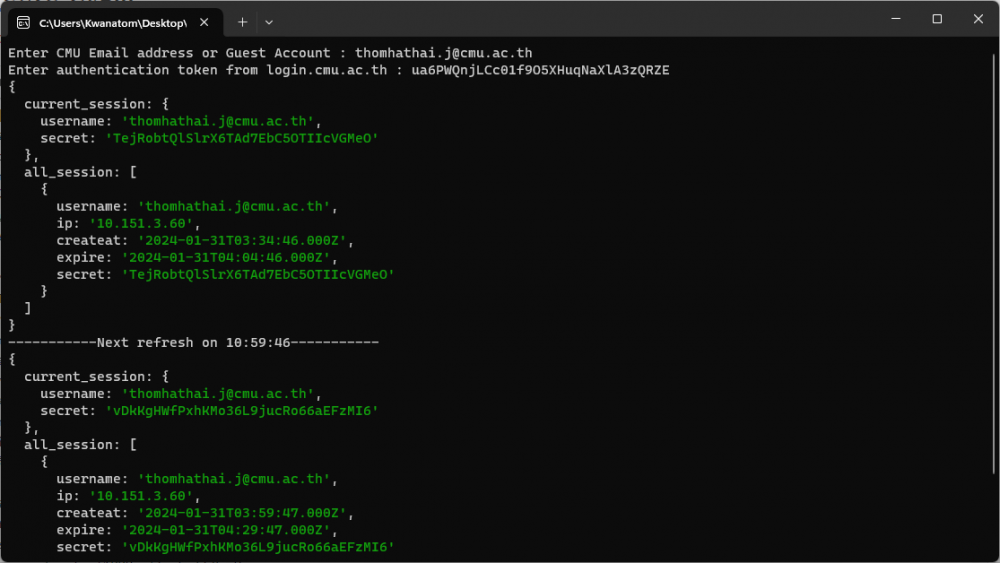
- When you want to disconnect from the internet, press Ctrl+C to exit the application.
Connect via Web Browser (Windows and macOS)
- Turn off some functions of your web browser so CMU Login can work continuously:
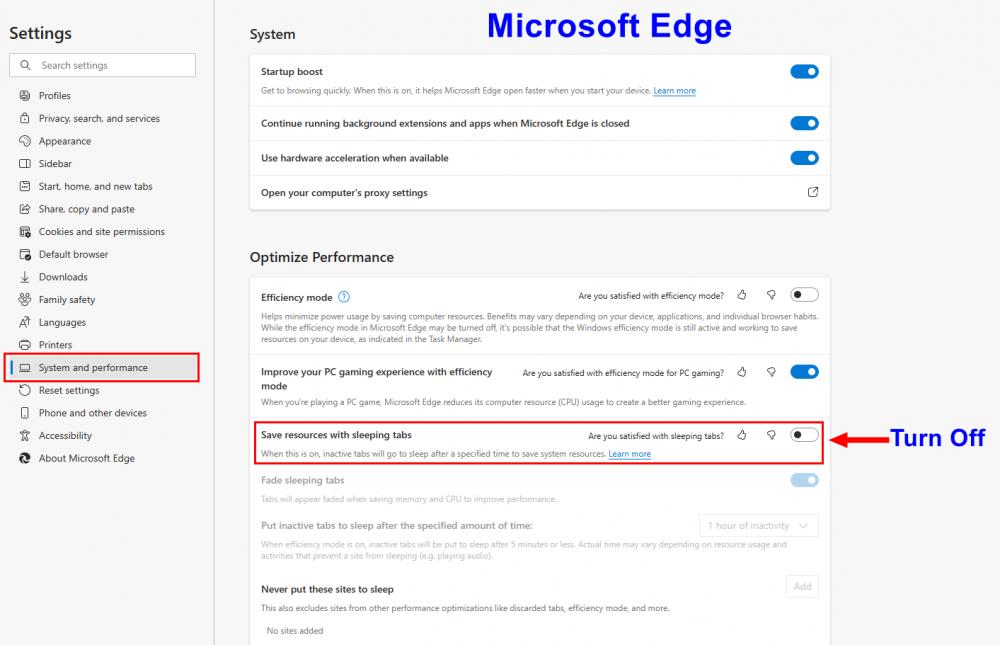
- Microsoft Edge: Go to Settings >> System and Performance >> Save resources with sleeping tabs >> Turn Off.
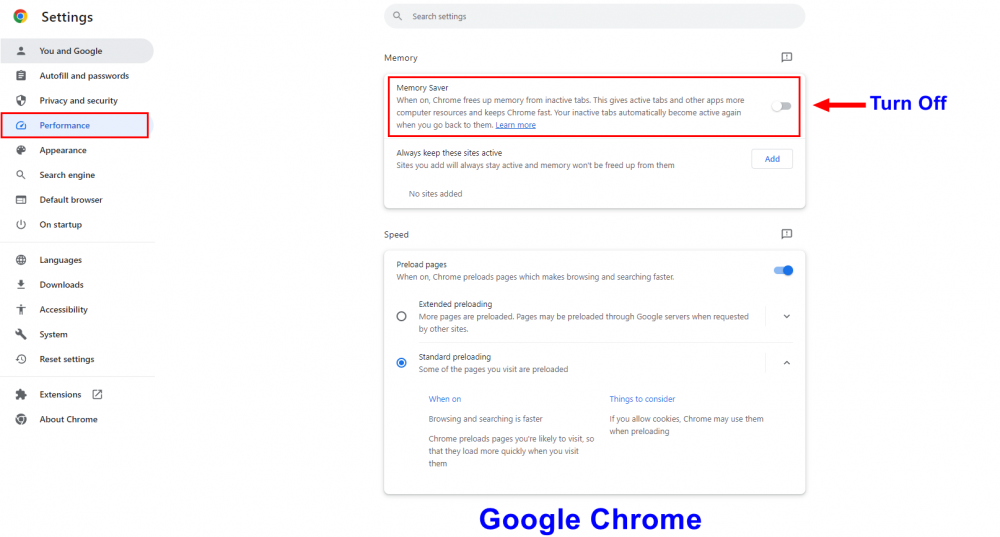
- Google Chrome: Go to Settings >> Performance >> Memory >> Memory Saver >> Turn Off.
- Microsoft Edge: Go to Settings >> System and Performance >> Save resources with sleeping tabs >> Turn Off.
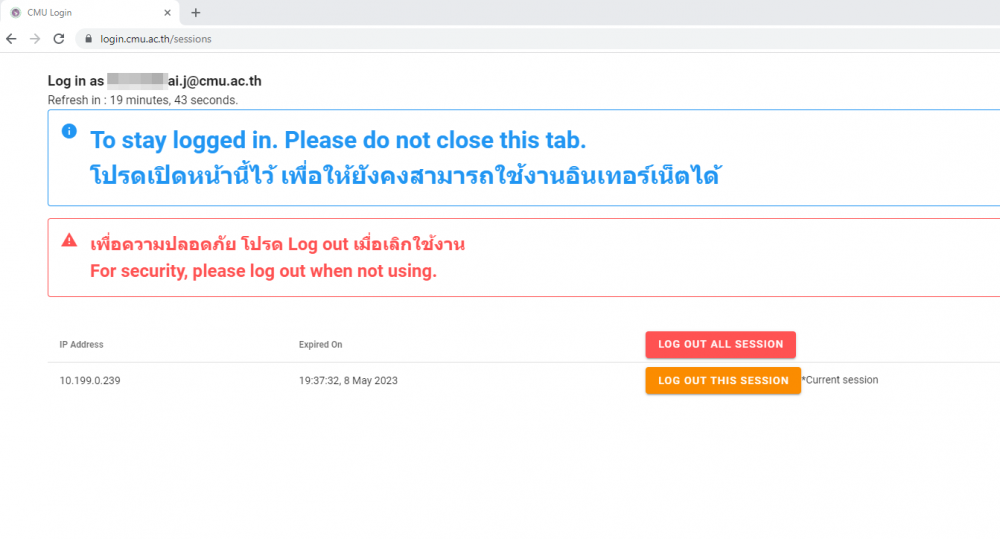
- After plugging the LAN cable into your computer, open a Web Browser (eg. Microsoft Edge / Google Chrome) and type login.cmu.ac.th in the address bar, then press Enter.
- For the first time you log in, it is recommended to read the Agreement. ก่อน
- After you fully understand the Agreement, click the button LOGIN WITH CMU ACCOUNT OR GUEST ACCOUNT.
- Enter your CMU Account (both username and password), then click ACCEPT AGREEMENT AND LOGIN.
- Please keep this window open while you are using the internet (you can minimize it). When you want to disconnect, close this window.