Windows 10 and Windows 11 EN
From CMU ITSC Network
Revision as of 08:51, 7 July 2026 by Thomhathai (talk | contribs)
Windows10 & Windows 11 connect @JumboPlus5GHz
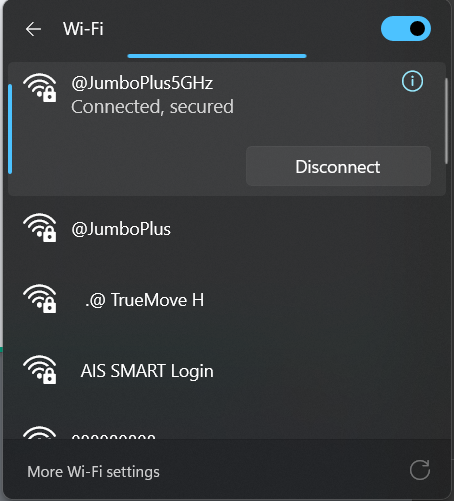
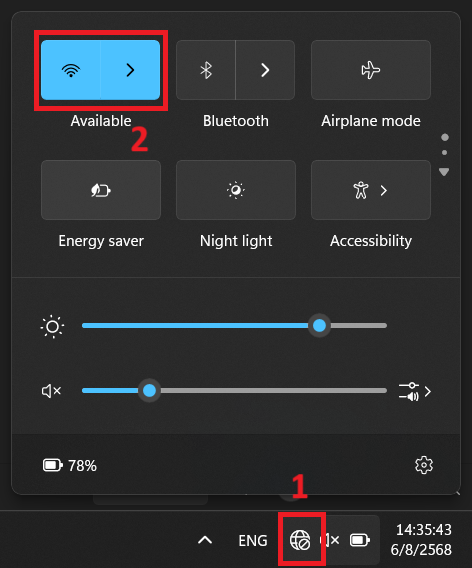
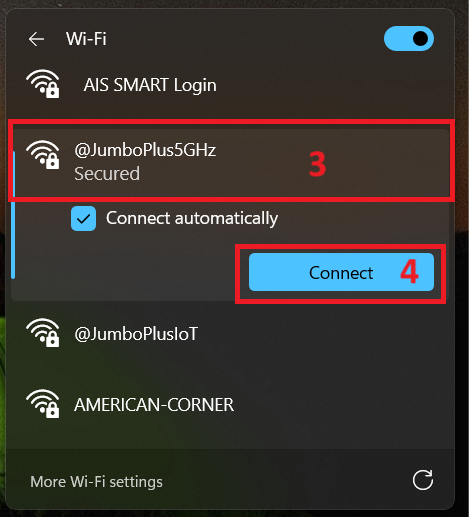
- Press the globe icon on the Taskbar (bottom right) and click > on the Wi-Fi icon, then select @JumboPlus5GHz and click Connect
- If you only see the name @JumboPlus, it means your device only supports the 2.4GHz frequency.
- If you see both names, it means your device supports the 5GHz frequency; it is recommended to connect to @JumboPlus5GHz.
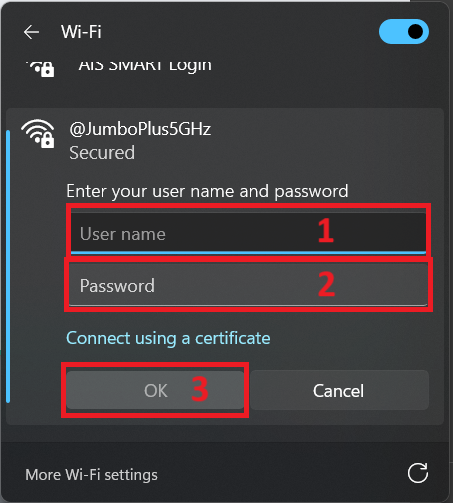
- Enter your Username and Password for the CMU Account provided by the university, then click OK
- CMU Students: Firstname_Surname@cmu.ac.th
- CMU Students with ID 69 onwards: StudentID@cmu.ac.th
- CMU Staffs: Firstname.Surname@cmu.ac.th
3. Click Connect
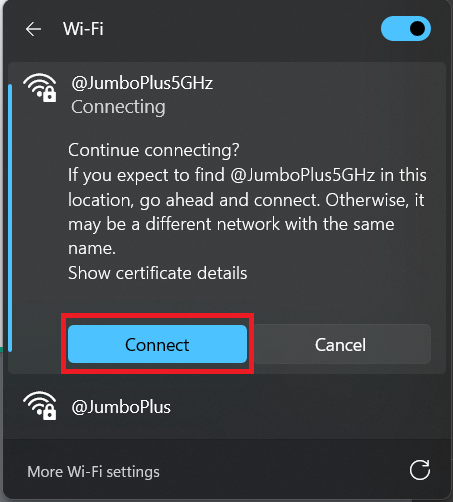
4. After successfully connecting to @JumboPlus5GHz or @JumboPlus, the device will remember the connection. Next time you are in an area with a signal, the device will connect automatically.